
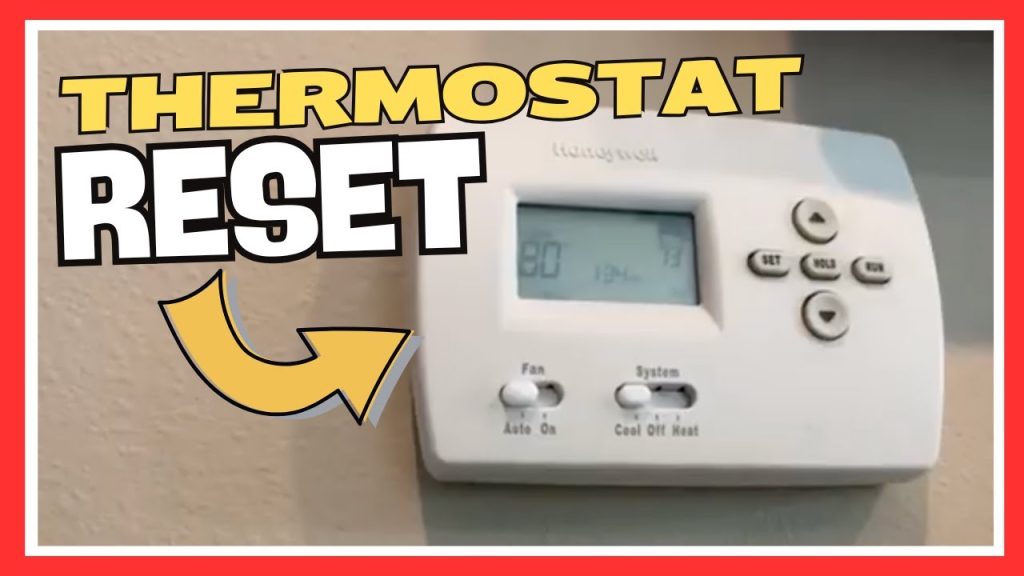
Are you struggling with your Honeywell Home thermostat? Maybe it’s not responding like it used to, or you want to start fresh with the settings.
Resetting your thermostat can fix many common issues and help you get back to perfect comfort quickly. You’ll discover simple, step-by-step instructions to reset your Honeywell Home thermostat with ease. By the end, you’ll feel confident in taking control of your heating and cooling system again.
Keep reading—your ideal home temperature is just a reset away!
Reasons To Reset Your Thermostat
Resetting your Honeywell Home Thermostat might seem like a simple task, but understanding why you need to do it can save you time and frustration. Sometimes, a reset is the key to fixing issues that disrupt your comfort or waste energy. Knowing the reasons behind a reset helps you decide when it’s necessary and ensures you don’t overlook simple fixes.
Common Issues Needing A Reset
Your thermostat might need a reset if it behaves oddly or stops responding. Common problems include:
- Unresponsive touch screen or buttons
- Incorrect temperature readings
- Failure to maintain the set temperature
- Wi-Fi connectivity issues
- Unexpected shutdowns or restarts
Imagine coming home to a cold house because your thermostat froze on the wrong setting. A quick reset can often fix these glitches without calling a technician.
When To Consider A Reset
Ask yourself if your thermostat is acting out of the ordinary or if it stopped responding to your commands. If you notice any sudden changes in performance or error messages, it’s a good time to reset. Also, after a power outage or system update, a reset can help your thermostat recalibrate and work smoothly again.
Have you tried basic troubleshooting steps and still face issues? Resetting can clear temporary errors and restore normal function. It’s a simple action that often solves problems faster than you think.

Credit: www.youtube.com
Types Of Honeywell Thermostats
Honeywell offers a variety of thermostats to fit different needs and lifestyles. Understanding the type of thermostat you have is key before you try to reset it. Each model has unique features and reset methods that can save you time and frustration.
Digital Models
Digital thermostats are straightforward and easy to use. They typically have a simple display and manual buttons to adjust temperature settings. If you own one, resetting usually involves pressing a reset button or removing the batteries for a few minutes.
These models don’t connect to Wi-Fi, so they don’t require app-based resets. Have you checked if your thermostat has a small pinhole reset button? That’s often the quickest way to bring it back to factory settings.
Smart Thermostats
Smart thermostats are more advanced and connect to your home Wi-Fi. They allow control from your phone or voice assistants like Alexa or Google Home. Because of their complexity, resetting might require a combination of physical button presses and app commands.
For example, Honeywell’s Home T9 or T10 models have a touchscreen where you can find reset options within the settings menu. Are you aware that sometimes a full factory reset on smart thermostats erases all your schedules and preferences? Always back up your settings if possible.
Programmable Thermostats
Programmable thermostats let you set temperature schedules for different times of the day. They are a middle ground between digital and smart models. Resetting these usually involves clearing the programmed schedules, which can often be done through menu settings or a dedicated reset button.
If you’ve ever had trouble with your heating or cooling not following the schedule, resetting the programmable thermostat might fix it. Have you tried checking the user manual for exact reset instructions tailored to your model? It can save you a lot of trial and error.
Preparing For The Reset
Before you dive into resetting your Honeywell Home thermostat, it’s important to prepare properly. This ensures you don’t lose any important settings and that the process goes smoothly. Taking a few moments to get ready can save you time and frustration.
Gathering Necessary Tools
Resetting your thermostat usually doesn’t require many tools, but having a few items on hand can help. Make sure you have a small screwdriver if your model has a removable faceplate or battery compartment. A flashlight might also be handy if your thermostat is in a dimly lit area.
Some Honeywell thermostats rely on batteries, so check if you need fresh ones before starting. Having your user manual or model number nearby can make finding specific instructions easier. Are you ready to handle the reset without hunting for tools halfway through?
Backing Up Settings
Before resetting, note down your current settings. This includes temperature schedules, Wi-Fi passwords, and any customized preferences. You can write them down or take clear photos with your phone—whichever you find easier.
If your thermostat is connected to a smartphone app, check if it allows you to back up your settings digitally. Losing these configurations can mean spending extra time reprogramming later. Have you ever lost settings and wished you had saved them beforehand?
Resetting Digital Thermostats
Resetting digital thermostats helps fix glitches and restore normal function. It clears temporary errors and refreshes the system. This step is often needed after updates or unusual behavior.
Two main reset types exist for Honeywell Home thermostats: soft reset and hard reset. Each serves different purposes and varies in process. Choosing the right reset method depends on the issue severity.
Soft Reset Steps
- Press and hold the thermostat’s main button or power button.
- Keep holding for about 5 to 10 seconds until the screen goes blank.
- Release the button and wait for the thermostat to restart automatically.
- Check if the display returns to normal and settings remain intact.
- This reset refreshes the system without deleting your preferences.
Hard Reset Procedures
- Turn off the thermostat by switching the power off at the breaker.
- Remove the thermostat from its wall plate carefully.
- Locate the reset button or remove the thermostat’s batteries.
- Press and hold the reset button or leave batteries out for 30 seconds.
- Reinstall batteries or snap the thermostat back onto the wall plate.
- Turn the power back on at the breaker.
- The thermostat will restore factory settings, erasing all custom data.
Resetting Smart Thermostats
Resetting your smart thermostat can solve many issues, from unresponsive controls to erratic temperature readings. It’s a simple way to refresh the device and clear any glitches without needing professional help. Let’s look at how you can reset your Honeywell Home thermostat using the touchscreen and mobile app.
Using The Touchscreen Controls
Start by waking up your thermostat screen. Tap the menu icon, usually found at the bottom or side of the display. Navigate to the settings or system settings section.
Look for the “Reset” option. It might say “Reset to Factory Settings” or just “Reset.” Select it, and the thermostat will ask you to confirm your choice. Once confirmed, the device will reboot and clear all custom settings.
Remember, this action erases your schedules and preferences. Are you ready to set everything up again? This method is quick and doesn’t require any other devices.
Reset Via Mobile App
If you prefer controlling your thermostat remotely, the Honeywell Home app offers a convenient reset option. Open the app and select your thermostat from the device list.
Go to the device settings, then find the reset or factory reset option. Confirm your decision, and the app will send the reset command to your thermostat.
Using the app lets you reset without touching the thermostat physically, which is handy if the unit is in a hard-to-reach place. Have you explored all the app’s features to make managing your thermostat easier?
Resetting Programmable Thermostats
Resetting your Honeywell Home programmable thermostat can solve many common issues like unresponsive controls or incorrect scheduling. It’s a simple process that helps clear errors and restore smooth operation. Understanding how to reset properly gives you control without needing a technician.
Manual Reset Instructions
To manually reset your thermostat, start by locating the reset button. On many Honeywell models, it’s a small pinhole labeled “Reset” that requires a paperclip to press.
- Press and hold the reset button for about 5 seconds until the screen turns off or flashes.
- Release the button, and the thermostat will restart.
- Check the display to ensure it’s back to the default time or settings.
If your model doesn’t have a reset button, try removing the thermostat from its wall plate. Take out the batteries if it uses them, wait for a minute, then reinstall everything. This manual power cycle often resets minor glitches without erasing your program.
Restoring Factory Defaults
Restoring factory defaults wipes all saved schedules and settings, returning your thermostat to its original condition. This is useful if your programming is completely off or you want to start fresh.
- Navigate to the settings menu on your thermostat’s screen.
- Look for options such as “Reset,” “Restore Factory Settings,” or “Clear All Settings.”
- Confirm your choice—be aware this action cannot be undone.
After the reset, you’ll need to re-enter your location, time, and heating or cooling schedules. While it might seem like extra work, this clean slate can fix persistent problems that manual resets can’t handle. Have you ever noticed your thermostat acting strangely after a power outage? Factory resetting might be the fix you didn’t realize you needed.
After The Reset
After you reset your Honeywell Home thermostat, it’s important to get everything back in order so your home stays comfortable. The reset clears all previous settings, including schedules and preferences. Now, you have a clean slate to set up your thermostat exactly how you want it.
Reconfiguring Settings
Once the reset is done, start by setting the time and date. This ensures your thermostat runs the schedules correctly. Don’t forget to select the right system type—whether it’s heating, cooling, or both.
Next, customize your temperature preferences for different times of the day. You can add schedules for weekdays and weekends separately. Take a moment to adjust fan settings too; some models let you choose between auto and continuous fan modes.
Have you thought about energy-saving settings? Many Honeywell thermostats offer options to help reduce power use without sacrificing comfort. Setting these up now can save you money later on your utility bills.
Testing The Thermostat
After reconfiguring, test your thermostat to ensure everything works smoothly. Start by manually adjusting the temperature and listen for your heating or cooling system to respond. If it doesn’t react promptly, double-check your wiring and system settings.
Check the display for any error messages or unusual icons. These might indicate a problem that needs fixing. Try running a quick system diagnostic if your model supports it—this can reveal hidden issues.
How confident do you feel about the new setup? If anything seems off, don’t hesitate to revisit your settings or consult the user manual. A properly tested thermostat means fewer surprises during extreme weather.

Credit: unitedstatesolutions.com
Troubleshooting Tips
Resetting your Honeywell Home Thermostat usually solves common issues quickly. But what if the reset doesn’t work as expected? Troubleshooting helps you understand the root of the problem and avoid unnecessary frustration.
Keep in mind that sometimes the issue may be simple, like a loose battery or power interruption. Other times, it might need a deeper look. Knowing what to do next can save you time and stress.
What To Do If Reset Fails
If your thermostat doesn’t reset, start by checking the power source. Ensure the batteries are fresh or the unit is properly connected to your HVAC system.
Try unplugging the thermostat for a minute, then plugging it back in. This can refresh the device’s internal system.
Also, review your user manual for a model-specific reset method. Some Honeywell models require holding certain buttons simultaneously or using the touchscreen menu.
If none of these work, clear the thermostat’s memory by removing the batteries for 10 minutes. This often forces a full reset.
When To Contact Support
If your thermostat still doesn’t respond after troubleshooting, it’s time to reach out for professional help. Persistent issues could indicate a hardware failure or wiring problem.
Before you call, gather information such as your thermostat model number, error messages, and what steps you have tried. This will help the support team assist you faster.
Remember, some problems might be covered under warranty. Checking this can save you money on repairs or replacements.
Maintaining Your Thermostat
Maintaining your Honeywell Home thermostat ensures it works well for a long time. Simple care helps avoid errors and keeps temperature control accurate. Proper upkeep saves energy and prevents costly repairs.
Regular Updates
Keep your thermostat’s software up to date. Updates fix bugs and improve performance. Check the Honeywell app or website for the latest version. Installing updates can enhance features and security. Set a reminder to check updates monthly.
Cleaning And Care
Dust and dirt can block sensors and buttons. Clean your thermostat gently with a soft cloth. Avoid using water or harsh chemicals. Remove dust from vents and display screen carefully. Check batteries regularly if your model uses them. Clean surroundings help your thermostat sense room temperature better.

Credit: www.youtube.com
Frequently Asked Questions
How Do I Reset A Honeywell Home Thermostat?
To reset your Honeywell Home thermostat, locate the reset button. Press and hold it for about five seconds. This action will restore the thermostat to its default settings. Always consult your thermostat’s manual for model-specific instructions. Resetting can solve many common issues.
What Are The Steps To Factory Reset?
Begin by switching off the thermostat. Press and hold the “menu” button for five seconds. Choose the “factory reset” option from the menu. Confirm your choice, and the thermostat will reset. This process erases all custom settings. Be sure to reprogram your preferences afterward.
Why Is My Honeywell Thermostat Not Responding?
Your Honeywell thermostat might not respond due to several reasons. First, check the power supply and batteries. Then, ensure all connections are secure. A reset can often resolve unresponsiveness. If problems persist, consult the manual or contact customer support. Regular maintenance can prevent issues.
Can A Reset Fix Thermostat Issues?
Yes, a reset can often resolve common issues. It restores the thermostat to its default settings. This action can clear any glitches or errors. However, persistent problems may require professional assistance. Always consult the manual before attempting a reset. It provides model-specific troubleshooting steps.
Conclusion
Resetting your Honeywell Home thermostat is simple and quick. Follow the steps carefully to avoid mistakes. A reset can fix many common issues fast. This helps your thermostat work better and saves energy. Regular checks keep your system running smoothly.
Take your time and stay patient during the process. Soon, your thermostat will respond as it should. Enjoy a comfortable home with easy thermostat control.