

Imagine turning your lights on or off with just your voice. No more fumbling for switches in the dark or walking across the room to adjust the lighting.
If you’ve ever wanted to control your light bulbs through Google Home, you’re in the right place. This guide will show you exactly how to connect your light bulb to Google Home quickly and easily. By the end, you’ll enjoy the convenience of smart lighting that responds to your commands.
Ready to make your home smarter? Let’s get started!
Choose Compatible Smart Bulbs
Choosing the right smart bulb is essential before connecting it to your Google Home. Not all smart bulbs are compatible, and picking one that works seamlessly can save you time and frustration. Let’s look at how to identify bulbs that fit well with Google Home and compare some popular options.
Check Google Home Compatibility
Start by checking if the smart bulb explicitly supports Google Home. This information is usually available on the packaging or the product description online.
Look for phrases like “Works with Google Assistant” or “Google Home compatible.” Without this confirmation, you might face connectivity issues or miss out on voice control features.
Have you ever bought a device only to realize later it doesn’t work with your setup? Avoid that by verifying compatibility upfront. Also, consider if the bulb requires a hub or connects directly via Wi-Fi or Bluetooth.
Compare Popular Smart Bulb Brands
| Brand | Google Home Support | Connection Type | Notable Features | Price Range |
|---|---|---|---|---|
| Philips Hue | Yes | Requires Hue Bridge (Hub) | Excellent color range, reliable app | $$$ |
| LIFX | Yes | Wi-Fi (No hub required) | Vivid colors, easy setup | $$ |
| TP-Link Kasa | Yes | Wi-Fi (No hub required) | Affordable, simple controls | $ |
| Wyze | Yes | Wi-Fi (No hub required) | Budget-friendly, basic colors | $ |
Which features matter most to you? If you want rich colors and can invest in a hub, Philips Hue might be your best bet. Looking for easy setup without extra devices? LIFX or TP-Link Kasa bulbs are solid choices.
Reflect on your daily routine and decide whether you need advanced features or a simple smart bulb to control your lights with your voice. Your choice affects how smoothly your Google Home will manage your lighting.
Prepare Your Devices
Preparing your devices is a crucial step before connecting your light bulb to Google Home. It ensures everything works smoothly and saves you from frustration later. Getting your devices ready means setting up your Google Home correctly and making sure your Wi-Fi connection is solid.
Set Up Your Google Home Device
First, plug in your Google Home device and wait for it to power on. You’ll see a light ring or indicator showing it’s ready to be configured.
Next, download the Google Home app on your smartphone if you haven’t already. The app guides you through the setup process, helping you connect Google Home to your account and personalize settings.
Be patient during setup. Sometimes devices need updates or a few minutes to sync. Have you noticed how skipping this step often causes connection problems later? Taking the time now saves headaches down the line.
Ensure Stable Wi-fi Connection
Your Google Home and smart bulb both rely heavily on a reliable Wi-Fi network. Make sure your router is working well and that the signal reaches the area where you want to install the bulb.
To test your Wi-Fi strength, walk to the bulb’s location with your phone and run a quick speed test. If the signal feels weak, consider moving the router or using a Wi-Fi extender.
Also, check that your Wi-Fi network is 2.4 GHz compatible, as many smart bulbs do not support 5 GHz networks. Have you ever tried connecting a device only to find out it needs a specific network band? Avoid that by confirming your setup beforehand.
Install The Smart Bulb
Installing your smart bulb is a straightforward process, but it requires careful attention to safety and proper handling. Before you get started, make sure you prepare your space and tools. This ensures a smooth setup and prevents any damage to your new device or your home.
Turn Off Power Before Installation
Always switch off the power at the circuit breaker or wall switch before you start. This step might seem obvious, but many overlook it and risk electric shock or damaging the bulb. Safety first—never skip this part.
Once the power is off, double-check by turning on the light switch to confirm the bulb socket is not live. This simple test protects you during installation.
Screw In The Smart Bulb Correctly
Handle the smart bulb gently and screw it in until it’s snug, but don’t overtighten. Too much force can break the bulb or damage the socket. If it feels tight before it’s fully seated, stop and try again.
Align the bulb properly to avoid cross-threading. A misaligned bulb won’t connect well and can cause flickering or connectivity issues. Take your time to ensure it’s secure and straight.
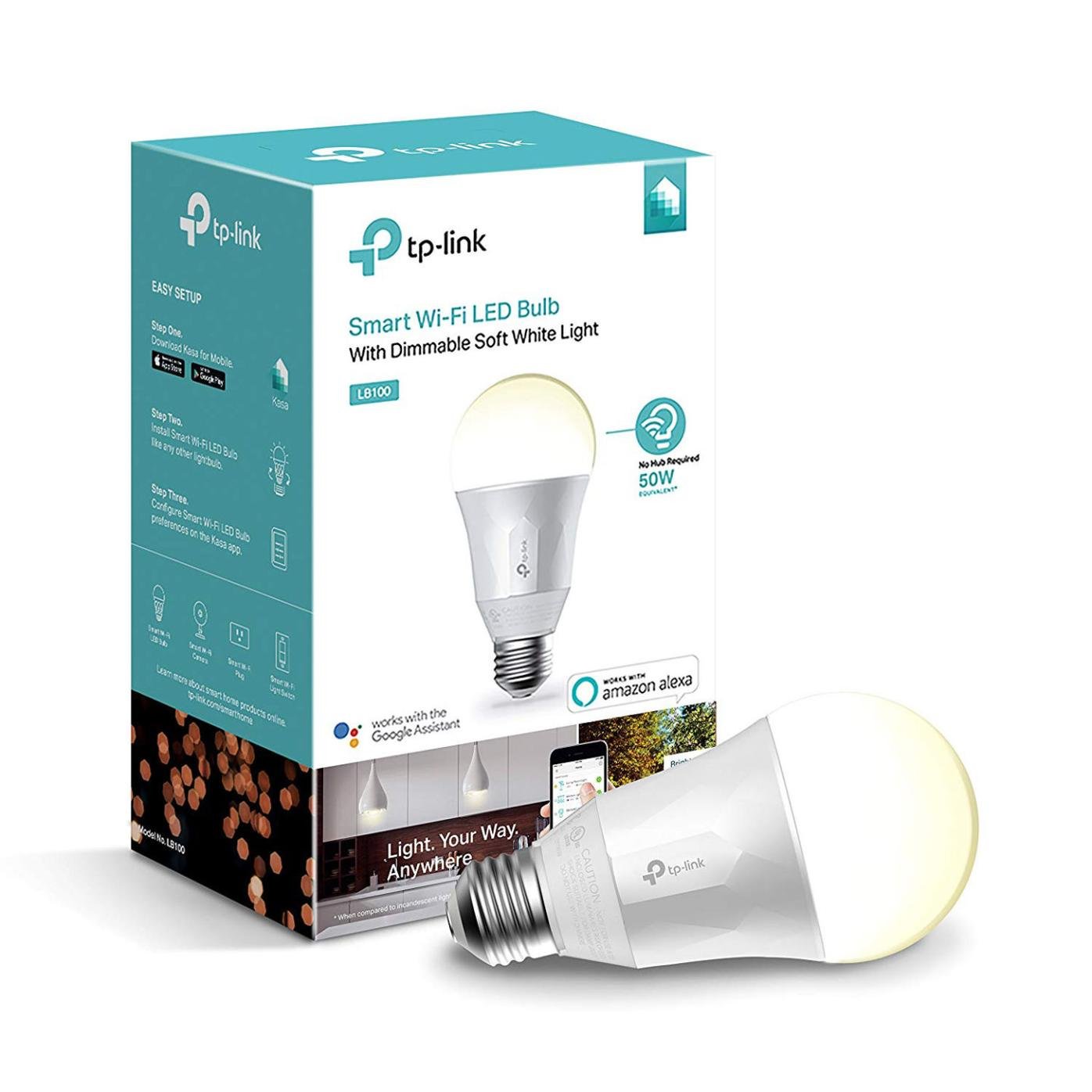
Have you noticed how a loose bulb can cause your smart device to malfunction? Proper installation is the first step to reliable control through Google Home.
Credit: gazette.com
Connect Bulb To Google Home
Connecting your light bulb to Google Home lets you control lighting with simple voice commands. This setup makes your home smarter and more convenient. Follow clear steps to link your bulb to the Google Home app quickly.
Open Google Home App
Start by opening the Google Home app on your smartphone. Make sure your phone is connected to the same Wi-Fi network you want your bulb to use. The app is available on both Android and iOS devices.
Add New Device
Inside the app, tap the plus (+) icon to add a new device. Choose the option to set up a new device in your home. This begins the process of finding your smart light bulb for connection.
Follow In-app Setup Instructions
The app will guide you step-by-step. It may ask to scan for nearby devices or enter the bulb’s setup mode. Follow prompts like selecting your Wi-Fi network and naming your bulb. Wait for the confirmation that the bulb is connected and ready to use.
Customize Your Smart Bulb
Customizing your smart bulb helps you get the most from your Google Home setup. It allows you to control light settings and create a cozy atmosphere. Tailoring the bulb to your preferences enhances comfort and convenience around the home.
Name Your Bulb
Assign a clear, simple name to your smart bulb. This makes voice commands easier and faster. Instead of saying “turn on the light,” say the bulb’s name like “turn on the kitchen light.” Choose names based on the bulb’s location or purpose.
Set Lighting Preferences
Adjust brightness and color to suit your mood or activity. Use the Google Home app to pick warm or cool light tones. Save your favorite settings for quick access. Bright lights for reading, soft lights for relaxing.
Create Routines And Schedules
Automate your lighting with routines and schedules. Set the bulb to turn on at sunset or off at bedtime. Combine light changes with other smart home devices. For example, dim lights when playing music or waking up gently with bright light.
Troubleshoot Common Issues
Connecting your light bulb to Google Home can sometimes hit a few snags. Troubleshooting common issues helps you get back to controlling your lights with ease. Let’s look at some typical problems and how to fix them quickly.
Bulb Not Connecting
If your smart bulb refuses to connect, first check that the bulb is powered on and within range of your Wi-Fi router. A weak signal often blocks the connection.
Make sure your Google Home and the bulb are on the same Wi-Fi network. Mixing 2.4 GHz and 5 GHz bands can cause connection failures.
Try restarting your router and the bulb. Sometimes, a simple reboot clears temporary glitches.
Voice Commands Not Working
When Google Home doesn’t respond to your voice commands about the bulb, verify that the device is properly linked in the Google Home app.
Check for software updates on both your Google Home and the smart bulb’s app. Outdated software often causes recognition issues.
Ensure that you’re using the exact name assigned to your bulb in the app. Have you accidentally renamed it something Google might misinterpret?
Resetting Your Smart Bulb
Resetting the bulb often solves stubborn problems. The process varies by brand, but typically involves turning the bulb on and off several times in a row.
After resetting, you’ll need to set up the bulb again in the Google Home app as if it’s new. This can clear hidden errors and restore smooth operation.
Keep your bulb’s manual handy for specific reset instructions. Have you noticed how many issues vanish after a quick reset?
Enhance Smart Home Experience
Enhancing your smart home experience goes beyond just connecting a light bulb to Google Home. It’s about creating a seamless network where your devices work together effortlessly. Imagine walking into a room where your lights adjust automatically, your favorite playlist starts, and the temperature feels just right—all with a simple voice command. This level of convenience transforms everyday living into something smarter and more enjoyable.
Integrate With Other Devices
Connecting your smart bulb to Google Home is just the beginning. You can link it with other smart devices like thermostats, security cameras, and smart plugs to build a cohesive system. For example, setting your lights to turn on when your smart lock is unlocked adds a welcoming touch to your entryway.
Think about routines you already follow. Could your coffee maker start brewing when your lights turn on? Google Home’s app lets you create these custom routines easily. This integration makes your smart home truly responsive to your lifestyle.
Use Voice Control Tips
Voice commands make controlling your smart bulb simple, but knowing how to phrase requests can improve your experience. Instead of just saying, “Turn on the light,” try commands like “Dim the living room light to 50%” or “Set the bedroom light to warm white.” These specific instructions help Google Home understand exactly what you want.
Have you noticed how sometimes your commands don’t work as expected? Try using clear, short phrases and avoid background noise when speaking. Also, naming your bulbs distinctly—like “Kitchen Light” or “Hallway Lamp”—prevents confusion when you control multiple lights.
Experiment with grouping lights together. Saying, “Turn off all upstairs lights” saves time compared to addressing each bulb separately. With practice, you’ll find the voice commands that fit best with your daily routine, making your smart home feel truly intuitive.
Credit: www.youtube.com

Credit: www.reddit.com
Frequently Asked Questions
How Do I Connect A Light Bulb To Google Home?
To connect a light bulb to Google Home, first ensure the bulb is compatible. Install the bulb, then use the Google Home app. Follow the on-screen instructions to add the device. Make sure both your Google Home device and the bulb are on the same Wi-Fi network.
Can Any Smart Bulb Work With Google Home?
Not all smart bulbs work with Google Home. Check compatibility before purchasing. Popular brands like Philips Hue, LIFX, and TP-Link often support Google Home integration. Always verify the specifications or consult the manufacturer’s website for Google Home compatibility details.
Why Won’t My Light Bulb Connect To Google Home?
If your light bulb won’t connect, check your Wi-Fi network. Ensure the bulb and Google Home are on the same network. Restart devices if needed. Also, make sure the smart bulb is in pairing mode and follow the setup instructions carefully in the Google Home app.
Do I Need A Hub For Google Home And Bulbs?
Some smart bulbs require a hub to connect to Google Home, while others don’t. Check the bulb’s specifications. Bulbs from brands like Philips Hue might need a hub, while others like LIFX work directly with Google Home without a hub.
Conclusion
Connecting your light bulb to Google Home is simple and quick. Follow each step carefully for smooth setup. Once connected, control your lights with just your voice. Enjoy hands-free lighting that fits your daily routine. Smart lighting adds comfort and convenience at home.
Keep your devices updated to avoid connection problems. Now, your home feels a bit smarter every day. Try it and see how easy smart living can be.