
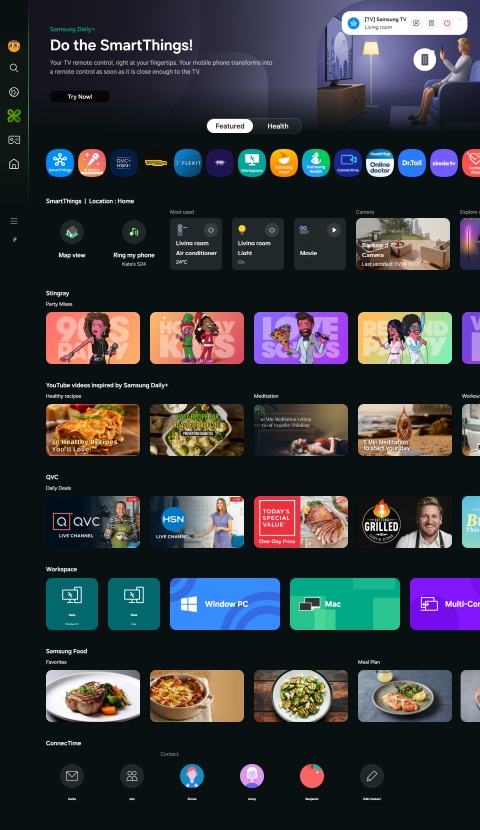
How to Add Apps to Samsung Smart Tv Home Screen. Want to make your Samsung Smart TV feel truly yours? Adding apps to your home screen is the easiest way to get quick access to your favorite shows, games, and streaming services.
Imagine turning on your TV and finding everything you love right where you want it—no more hunting through menus or waiting around. In this guide, you’ll discover simple, step-by-step tips to customize your Samsung Smart TV home screen like a pro.
Ready to unlock the full potential of your TV? Let’s dive in!

Setting Up Your Samsung Smart Tv
Setting up your Samsung Smart TV is the first step to enjoy its full features. Proper setup ensures smooth use and easy access to apps. This process involves connecting your TV to the internet and signing into your Samsung account. Both steps are essential for adding and managing apps on the home screen.
Connecting To The Internet
Your Samsung Smart TV needs an internet connection to download apps. Connect using Wi-Fi or an Ethernet cable for stable access.
- Open the Settings menu on your TV.
- Select Network, then Network Settings.
- Choose your Wi-Fi network or connect via Ethernet.
- Enter the password if using Wi-Fi and confirm.
- Wait for the TV to connect to the internet.
Check the connection status to ensure your TV is online. A strong connection helps apps load faster and work smoothly.
Signing Into Samsung Account
Signing into your Samsung account unlocks access to the app store and personalized features.
- Go to the Settings menu again.
- Select General, then System Manager.
- Choose Samsung Account and select Sign In.
- Enter your email and password for your Samsung account.
- Confirm the login and wait for the verification.
Without a Samsung account, you cannot download or update apps. Keep your login details handy for quick access.
Accessing The App Store
Accessing the App Store on your Samsung Smart TV is the first step to customizing your home screen with apps that suit your interests. This process is straightforward, yet knowing exactly where to find the app store and how to browse its offerings can save you time and frustration. Let’s break down how you can quickly get to the apps section and find the best apps for your TV experience.
Navigating To The Apps Section
Start by pressing the Home button on your Samsung remote. This brings up the main menu on your TV screen. From here, look for the “Apps” icon—it usually looks like a grid of squares and is easy to spot.
Click on the “Apps” icon to open the App Store. If you don’t see the icon immediately, try scrolling left or right across the menu options. Sometimes, depending on your TV model or software version, the layout might be slightly different.
Have you noticed how quick access to apps can change your viewing habits? Finding this section easily means you’re just a few clicks away from new entertainment.
Exploring App Categories
Once inside the App Store, you’ll find apps organized into categories. These categories include popular choices like Entertainment, Games, Lifestyle, and Education. Browsing by category helps you discover apps you might not have thought to look for.
Samsung often highlights trending or featured apps at the top of the list. Checking these out can introduce you to new and exciting content. If you want something specific, use the search function to type in app names or keywords.
Think about what type of apps you use the most—do you prefer streaming services, news, or fitness apps? Exploring categories tailored to your interests makes it easier to find apps that add real value to your TV experience.
Downloading And Installing Apps
Downloading and installing apps on your Samsung Smart TV opens up a world of entertainment and functionality right on your home screen. It’s a straightforward process, but understanding each step ensures you get the most out of your TV’s app ecosystem. Let’s walk through how you can find, assess, and add the apps you want.
Searching For Specific Apps
Use the remote to navigate to the Samsung Smart Hub or Apps section on your TV. Here, you’ll find a search bar where you can type the name of the app you want. Typing “Netflix,” “YouTube,” or any other app you know will quickly narrow down the options.
Have you ever struggled to find a niche app? Try using keywords related to the app’s function instead of the exact name. For instance, searching “fitness” might reveal workout apps you didn’t know were available.
Understanding App Details
Before installing, take a moment to check the app details page. This page shows essential information like the app’s size, user ratings, and a brief description of what it offers. This helps you decide if the app fits your needs and how much space it will take on your TV.
Imagine downloading a large app only to find it doesn’t have the features you wanted. Reading the details first saves time and storage space. You can also see if the app is free or requires a subscription, avoiding surprises later.
Initiating The Download
Once you’re ready, select the “Install” or “Download” button on the app page. The TV will handle the rest, showing a progress bar so you know when the app is ready to use. This usually takes just a few moments.
After installation, the app icon appears on your home screen or in the Apps section, making it easy to launch anytime. Wondering how many apps your TV can hold? It depends on your model’s storage, so keep an eye on available space to keep performance smooth.
Adding Apps To Home Screen
Adding apps to your Samsung Smart TV home screen makes accessing favorites faster. You can customize the home screen for convenience. This section explains how to find installed apps and pin them.
Locating Installed Apps
Press the Home button on your remote to open the Smart Hub. Navigate to the Apps section. Here, you see all apps installed on your TV. Scroll through the list to find the app you want. Use the search feature to find apps quickly.
Pinning Apps To Home Screen
Highlight the app you want to pin in the Apps section. Press the Down button on the remote to open options. Select “Add to Home” or “Pin to Home.” The app icon appears on your home screen. Move the icon by pressing and holding the Enter button, then use arrow keys.
Managing Your Home Screen
Managing your Samsung Smart TV home screen helps you find apps quickly. It lets you keep favorite apps front and center. You can change the layout and remove apps you do not use. This keeps the screen neat and easy to navigate.
Organizing App Layout
Move apps to arrange them by your preference. Highlight an app using your remote. Press and hold the select button until the app moves. Drag it to a new spot on the home screen. Release the button to place the app there.
Use this to put your most used apps at the front. Group similar apps together for easy access. This simple step saves time and keeps your screen tidy.
Removing Apps From Home Screen
Clear apps you no longer want on the home screen. Highlight the app using your remote. Press and hold the select button until options appear. Choose “Remove” or “Delete” from the menu.
This action removes the app icon from the home screen only. It does not uninstall the app from your TV. Use this to keep your home screen clean and focused on what matters.
Troubleshooting Common Issues
Adding apps to your Samsung Smart TV home screen should be simple. Sometimes, issues arise that stop the process. Troubleshooting these common problems helps keep your TV running smoothly. This section covers ways to fix installation errors and network problems.
Resolving Installation Errors
Installation errors often occur due to storage limits or software glitches. Check your TV’s available storage space first. Delete unused apps or files to free up space. Restart the TV to clear temporary bugs.
Make sure your TV’s software is up to date. Go to Settings > Support > Software Update. Install any available updates before trying again. If the error persists, reset the Smart Hub. This resets app data without affecting your other settings.
- Check storage space and clear if full.
- Update TV software to the latest version.
- Restart TV to fix minor glitches.
- Reset Smart Hub for a fresh start.
Dealing With Network Problems
Network issues often block app downloads and updates. Confirm your TV is connected to the internet. Use the Network Settings menu to test the connection.
Restart your router and modem to fix slow or unstable signals. Move the router closer to the TV if the Wi-Fi signal is weak. Use an Ethernet cable for a more stable connection if possible.
- Check internet connection in Network Settings.
- Restart your router and modem.
- Improve Wi-Fi signal by moving the router.
- Use Ethernet cable for better stability.
Frequently Asked Questions
How Do I Add Apps To Samsung Smart Tv Home Screen?
To add apps, press the Home button on your remote. Navigate to Apps, select the app, and choose “Add to Home. ” The app icon will appear on your home screen for easy access.
Can I Remove Apps From The Samsung Smart Tv Home Screen?
Yes, highlight the app on the home screen, press and hold the Select button. Choose “Remove” to delete the app from the home screen without uninstalling it.
How To Rearrange Apps On Samsung Smart Tv Home Screen?
Press and hold the app icon on the home screen. Drag it to your preferred position and release the button to rearrange apps easily.
Why Can’t I Add Some Apps To My Samsung Smart Tv Home Screen?
Some apps may be restricted due to regional settings or TV model limitations. Ensure your TV software is updated for better app compatibility.
Conclusion
Adding apps to your Samsung Smart TV home screen is simple and fast. You can find apps in the Samsung App Store and add them with a few clicks. Organize your favorite apps for easy access anytime. This helps you enjoy movies, shows, and games without delay.
Keep your TV updated to find new apps and features. Now, your smart TV feels more personal and useful every day. Try adding apps today and see the difference it makes.