
How Do Smart Bulbs Work With Google Home. Imagine walking into a room and simply saying, “Turn on the lights,” and they brighten instantly. Sounds like magic, right?
This is exactly what smart bulbs with Google Home can do for you. If you’ve ever wondered how these smart bulbs work with Google Home to make your life easier and your home smarter, you’re in the right place. By the end of this article, you’ll understand how to control your lighting effortlessly, save energy, and even set the perfect mood—all with just your voice.
Ready to discover the secrets behind this simple yet powerful technology? Let’s dive in.
Smart Bulbs Basics
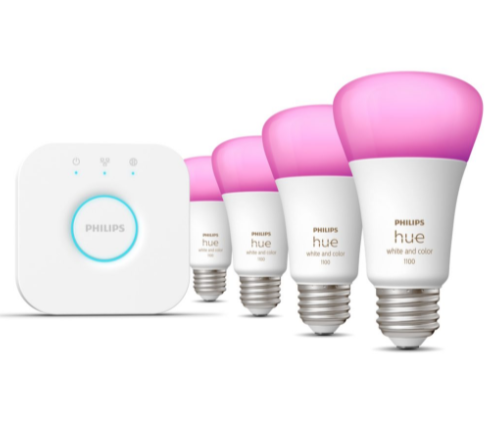
Smart bulbs are an easy way to control lighting in your home. They connect to your Wi-Fi network and work with voice assistants like Google Home. This lets you change colors, brightness, and schedules using your voice or a phone app. Understanding the basics helps you pick the right smart bulb and use it well.
Types Of Smart Bulbs
- Wi-Fi Bulbs:Connect directly to your home Wi-Fi without extra hubs.
- Bluetooth Bulbs:Use Bluetooth to connect to your phone or smart speaker nearby.
- Hub-Based Bulbs:Require a separate hub to connect multiple bulbs and devices.
- Color Changing Bulbs:Offer millions of colors and adjustable white tones.
- White-Only Bulbs:Provide different shades of white light, from warm to cool.
Key Features Of Smart Bulbs
- Voice Control:Adjust lights using Google Home voice commands.
- Scheduling:Set timers to turn lights on or off automatically.
- Dimming:Change brightness levels smoothly without extra switches.
- Color Options:Customize colors to match moods or occasions.
- Energy Efficiency:Use less power than traditional bulbs.
- Remote Access:Control lights from anywhere using a smartphone app.
Google Home Setup
Setting up Google Home is the first step to control smart bulbs with your voice. The process involves connecting the device to your Wi-Fi network and configuring the Google Home app. Both steps are simple and take only a few minutes.
Connecting Google Home To Wi-fi
Google Home needs a stable Wi-Fi connection to work properly. Start by plugging in your Google Home device. Wait until it announces it is ready for setup. Open the Wi-Fi settings on your smartphone or tablet. Look for the Google Home network and connect to it.
Next, open the Google Home app and follow the prompts. The app will search for nearby devices. Once your Google Home appears, select it to continue. Choose your home Wi-Fi network from the list. Enter the Wi-Fi password carefully and tap connect.
Wait a few seconds for the device to connect. A confirmation message will show on the app. This means Google Home is now online and ready to use.
Setting Up The Google Home App
Download the Google Home app from the App Store or Google Play. Open the app and sign in with your Google account. This lets you access all Google Home features and settings.
Follow the on-screen instructions to add a new device. The app will guide you through linking your Google Home to your account. You can name your device and assign it to a room in your house.
Once the setup finishes, explore the app to add smart bulbs. Tap the “Add” button and select “Set up device.” Choose your smart bulb brand and follow the instructions to connect it to Google Home.
Now you can control smart bulbs with voice commands through Google Home. The app also lets you create routines and schedules for your lights.
Linking Smart Bulbs To Google Home
Linking smart bulbs to Google Home allows hands-free control of your lighting. This connection makes managing lights simple and convenient. It also helps create a smarter home environment with voice commands and automation.
Pairing Process
Start by plugging in your smart bulb and turning it on. Open the Google Home app on your phone or tablet. Tap the “+” icon to add a new device. Select “Set up device” and then choose “Works with Google.”
Search for the smart bulb brand in the list. Log into your bulb’s account to link it with Google Home. Follow the on-screen instructions to complete the pairing. Once paired, Google Home can control your bulb using voice commands.
Managing Devices In Google Home
Open the Google Home app to see all connected devices. Tap on the smart bulb to rename or assign it to a room. Group bulbs for easier control of multiple lights at once.
Adjust brightness and color settings directly from the app. Use routines to automate your bulbs based on time or activity. Managing devices keeps your home lighting organized and responsive.

Credit: www.lepro.com
Voice Commands For Smart Bulbs
Using voice commands with smart bulbs through Google Home makes controlling your lighting effortless and fun. You don’t need to reach for a switch or open an app; just speak your wishes and watch your space transform. This hands-free approach not only adds convenience but also opens up creative ways to customize your environment.
Basic Commands
Getting started is simple. You can turn your smart bulbs on or off just by saying, “Hey Google, turn on the living room light.”Changing the brightness is just as easy: “Hey Google, dim the bedroom lights to 50%.”
Color-changing bulbs respond to commands like “Hey Google, set the kitchen light to blue.”This is perfect for setting the mood without lifting a finger.
- Turn lights on or off
- Adjust brightness levels
- Change light colors
These basic commands cover most daily needs and help you manage your lights effortlessly.
Advanced Controls
If you want to get more out of your smart bulbs, Google Home offers advanced controls. You can create routines, such as “Hey Google, good morning,”which turns on lights gradually to mimic sunrise.
Grouping lights allows you to control multiple bulbs at once. For example, “Hey Google, turn off all downstairs lights.”This feature is great for managing larger spaces or setting scenes for different activities.
You can also ask Google to change lights based on your schedule or even sync them with music and movies for immersive experiences. Have you tried using lighting to boost your focus during work or relaxation after a long day?
- Create and activate custom routines
- Control grouped lights with one command
- Sync lighting with entertainment
Exploring these options can make your smart bulbs feel like a true extension of your daily life.
Troubleshooting Common Issues
Smart bulbs paired with Google Home offer great convenience but may face some hiccups. Troubleshooting common issues can restore smooth operation quickly. Understanding typical problems helps fix them without stress. Below are key areas where users often need help.
Connection Problems
Connection issues often cause smart bulbs to fail syncing with Google Home. Check if your bulb and Google Home are on the same Wi-Fi network. A weak Wi-Fi signal can disrupt communication. Restart your router and the bulb to refresh connections.
Ensure your smart bulb is compatible with Google Home. Some bulbs require a dedicated app setup before linking. Update your Google Home app and bulb firmware regularly for best results.
- Verify Wi-Fi network and password accuracy.
- Reboot devices to clear temporary glitches.
- Check for firmware updates and install them.
- Confirm bulb compatibility with Google Home.
Voice Command Failures
Voice commands may not work if Google Home cannot recognize the bulb or understand instructions. Use clear, simple phrases for commands. Check your Google Home microphone is active and unobstructed.
Rename bulbs with distinct names to avoid confusion. Avoid similar names for different bulbs. Re-link the bulb to Google Home if commands fail repeatedly.
- Speak clearly and use simple commands.
- Ensure Google Home microphone is enabled.
- Give bulbs unique, easy-to-pronounce names.
- Re-pair bulbs with Google Home if needed.

Credit: www.amazon.com
Enhancing Smart Bulb Experience
Enhancing your smart bulb experience with Google Home brings convenience and control to a new level. It allows you to customize lighting to fit daily routines and moods. Simple voice commands can adjust brightness, color, and schedules. This makes your living space more comfortable and energy-efficient.
Using Routines And Automation
Google Home lets you create routines that control smart bulbs automatically. Set your lights to turn on at sunrise or dim when you start a movie. Routines combine multiple actions triggered by a single command or time.
- Wake up with gradual light brightening.
- Turn off all lights when you say “Goodnight.”
- Dim lights during dinner time.
- Simulate presence by turning lights on and off when away.
These automations save effort and create a seamless experience.
Integrating With Other Smart Devices
Smart bulbs work well with other devices in your smart home setup. Connect with smart plugs, thermostats, and security cameras through Google Home. This integration offers more control and safety.
- Sync lights with smart locks for entry alerts.
- Use motion sensors to turn on lights automatically.
- Adjust thermostat and lighting for energy savings.
- Create scenes that combine multiple devices with one command.
Such connections make your home smarter and more responsive to your needs.

Credit: www.youtube.com
Frequently Asked Questions
How Do Smart Bulbs Connect With Google Home?
Smart bulbs connect via Wi-Fi or Bluetooth to Google Home. After connecting, you can control them using voice commands through the Google Assistant. Ensure your smart bulb is compatible with Google Home for seamless integration and management.
Can I Control Smart Bulbs With Google Assistant?
Yes, you can control smart bulbs using Google Assistant. Simply use voice commands to turn lights on or off, adjust brightness, or change colors. Ensure your smart bulb is compatible and properly connected to Google Home.
Do Smart Bulbs Work With Google Home App?
Yes, smart bulbs work with the Google Home app. Use the app to set up, control, and customize your smart lighting. You can create routines, set schedules, and manage multiple bulbs from your smartphone.
Are Smart Bulbs Compatible With Google Nest?
Yes, most smart bulbs are compatible with Google Nest devices. This integration allows you to control lighting using voice commands through Nest speakers or displays. Ensure compatibility by checking bulb specifications before purchasing.
Conclusion
Smart bulbs work smoothly with Google Home to control your lights. You can turn bulbs on or off by voice commands. Adjusting brightness or changing colors takes just a few words. This setup makes daily life easier and more comfortable.
Simple steps connect your bulbs to Google Home quickly. Enjoy hands-free control and create the perfect lighting anytime. Smart lighting with Google Home brings convenience to every room.