
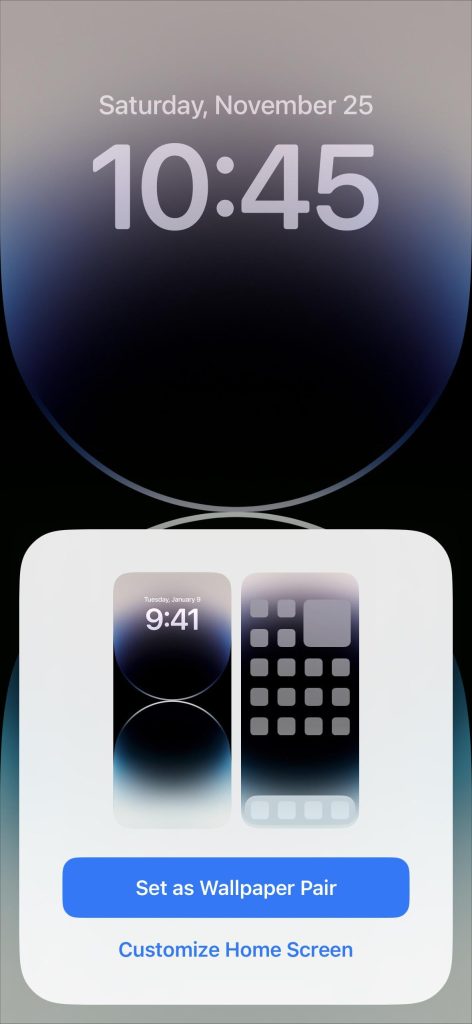
How to Make Lock Screen And Home Screen Different. Have you ever wished your phone’s lock screen and home screen looked completely different? Imagine unlocking your device and being greeted by one image, then tapping into your apps to see a fresh, new background.
It’s a simple change, but it makes your phone feel more personal and exciting every time you use it. You’ll discover easy steps to customize your lock screen and home screen separately. By the end, you’ll know exactly how to make your phone truly yours—and enjoy a fresh look every time you unlock it.
Keep reading to transform your device with just a few taps!

Credit: www.switchingtomac.com
Choose Different Wallpapers
Choosing different wallpapers for your lock screen and home screen personalizes your device. It creates a fresh look each time you use your phone. You can pick images that inspire you or just look good together. This simple change makes your phone more enjoyable to use every day.
Select Lock Screen Wallpaper
Pick a wallpaper that feels welcoming or calming. This is the first image you see after waking your phone. Choose photos with clear details and good contrast. Bright colors or simple patterns work well here. Make sure the image fits your screen size to avoid cropping.
Select Home Screen Wallpaper
Your home screen wallpaper should not distract from app icons. Choose softer colors or blurred images for this screen. It helps keep your apps easy to find and read. You can also use photos that show your hobbies or favorite places. Try to balance style with function for best results.
Using Third-party Apps
Third-party apps offer many wallpaper options and tools. They allow you to set different images for lock and home screens easily. Some apps provide daily wallpaper updates to keep your phone fresh. Look for apps with good reviews and simple controls. This method saves time and offers creative choices.
Customize Widgets Separately
Customizing widgets separately on your lock screen and home screen lets you tailor each space to your needs. You don’t have to settle for the same widgets everywhere. By choosing different widgets for each screen, you can keep your lock screen simple and informative while filling your home screen with tools and apps you use most.
Add Widgets To Home Screen
Adding widgets to your home screen gives you quick access to important information and functions without opening apps. Tap and hold an empty space on your home screen until the icons start to jiggle, then tap the “+” button to open the widget gallery.
From there, you can browse widgets by app or category. Pick the size you want, then tap “Add Widget.” You can drag it anywhere on your screen and even stack widgets to save space. I like keeping my calendar, weather, and music widgets handy for a quick glance throughout the day.
Lock Screen Widget Options
Your lock screen widgets are designed to show essential info without unlocking your phone. Depending on your device, you can add widgets like alarms, battery status, calendar events, or fitness stats. To customize, tap and hold the lock screen, then tap “Customize” or a similar option.
Choose widgets that provide value at a glance without overwhelming your lock screen. For example, I prefer a weather widget and a step counter here since I check these often before leaving the house. What widgets would make your lock screen more useful without cluttering it?
Adjust Screen Settings
Adjusting your screen settings can make a big difference in how your lock screen and home screen look and feel. It’s not just about picking different wallpapers; tweaking brightness and colors or adding unique screen effects can help you create a distinct vibe for each screen. This way, you can make your device more personal and visually interesting every time you unlock it.
Change Brightness And Colors
Brightness plays a huge role in how your screen appears. You might want a dimmer lock screen to save battery or reduce eye strain, while keeping your home screen bright for better visibility. Most phones let you adjust brightness separately for lock and home screens through display settings or third-party apps.
Colors can also set the mood. Try using cooler tones on your lock screen to create a calm, soothing effect, and warmer colors on your home screen for energy and vibrancy. Some devices allow you to tweak color temperature or apply filters, giving you extra control over the look.
Set Different Screen Effects
Adding screen effects can instantly separate your lock screen from your home screen. You might want a subtle blur or dark overlay on the lock screen to make notifications stand out clearly. Meanwhile, your home screen can have sharper, more vivid effects to highlight your app icons and widgets.
Animations or live wallpapers can also differ between screens. If you prefer a simple, static lock screen for quick access, try a dynamic home screen that changes with your mood or the time of day. Have you experimented with these effects to see how they impact your daily phone use?

Credit: www.youtube.com
Use Themes And Launchers
Using themes and launchers lets you customize your phone’s look easily. They help make your lock screen and home screen look unique. Themes change colors, icons, and wallpapers. Launchers change the overall design and how you use your phone. Both tools give you more control over your device’s style.
Explore Theme Options
Themes come in many styles and colors. You can find themes that focus on minimalism, nature, or even fun cartoons. Most phones have a built-in theme store or app. These themes change:
- Wallpaper on lock and home screens
- Icons and fonts
- Color schemes
Pick a theme that fits your mood or personality. Some themes let you set different wallpapers for lock and home screens. This helps make each screen feel separate but connected. Try a few themes to see what you like best.
Install Custom Launchers
Launchers replace your phone’s default home screen interface. They offer more options for customization. Popular launchers allow you to:
- Change app icons and layouts
- Set different gestures for actions
- Use custom wallpapers on home screen only
- Create separate styles for lock screen apps
Installing a launcher is simple. Download one from your app store. Open it and follow the setup steps. Some launchers work with themes to give a full makeover. Experiment with launchers to find one that fits your needs. This makes your home screen stand out from the lock screen.
Manage Lock Screen Security
Managing your lock screen security is essential to protect personal data. It controls access to your device while letting you personalize your lock and home screens differently. Strong security settings keep your phone safe from unauthorized use.
Set Up Pin Or Pattern
Choose a PIN or pattern to secure your lock screen. This simple step stops others from entering your phone easily. Select a code or pattern that you can remember but others cannot guess. Avoid common patterns like straight lines or simple numbers.
Follow these tips for a strong PIN or pattern:
- Use at least six digits for PINs
- Include varied directions in patterns
- Change your PIN or pattern regularly
- Do not share your code with others
Enable Biometric Locks
Biometric locks offer fast and secure access. Use fingerprint or facial recognition to unlock your device. This method adds an extra layer of protection beyond PINs or patterns.
To set up biometric locks:
- Go to your device’s security settings
- Choose fingerprint or face unlock option
- Follow on-screen instructions to register your biometrics
- Test the lock to ensure it works properly
Biometric locks are convenient and harder for others to bypass. They keep your phone secure while letting you unlock it quickly.
Credit: www.switchingtomac.com
Frequently Asked Questions
How Can I Set Different Wallpapers For Lock And Home Screens?
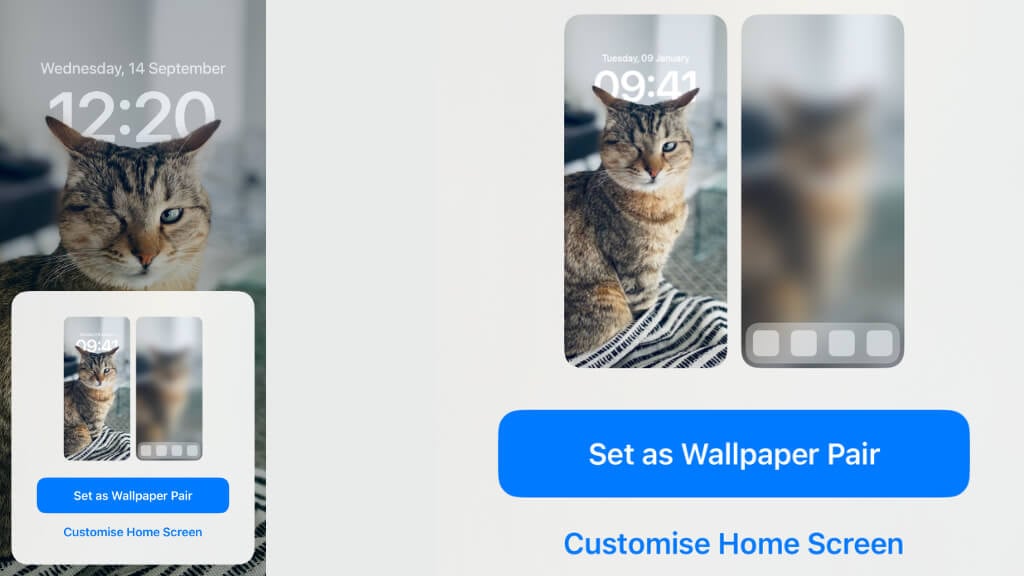
To set different wallpapers, go to your device’s wallpaper settings. Choose a wallpaper for the lock screen and a separate one for the home screen. Save changes, and your screens will display distinct images.
Which Devices Support Different Lock And Home Screen Wallpapers?
Most modern smartphones, including iPhones and Android devices, support separate lock and home screen wallpapers. Check your device’s settings to confirm if this feature is available.
Can I Use Live Or Dynamic Wallpapers Separately?
Yes, many devices allow live or dynamic wallpapers on either the lock or home screen. You can customize each screen independently for a unique look.
Does Using Different Wallpapers Affect Battery Life?
Using different wallpapers usually has minimal impact on battery life. However, live or dynamic wallpapers may consume more power than static images.
Conclusion
Creating different lock and home screens is simple and fun. It lets your phone feel fresh every day. You can choose pictures that show your style or mood. Changing them often keeps your phone interesting. Try it now and enjoy a more personal phone experience.
Small changes make a big difference. Keep exploring new wallpapers and layouts to find what you like best. Your phone can be as unique as you are.