
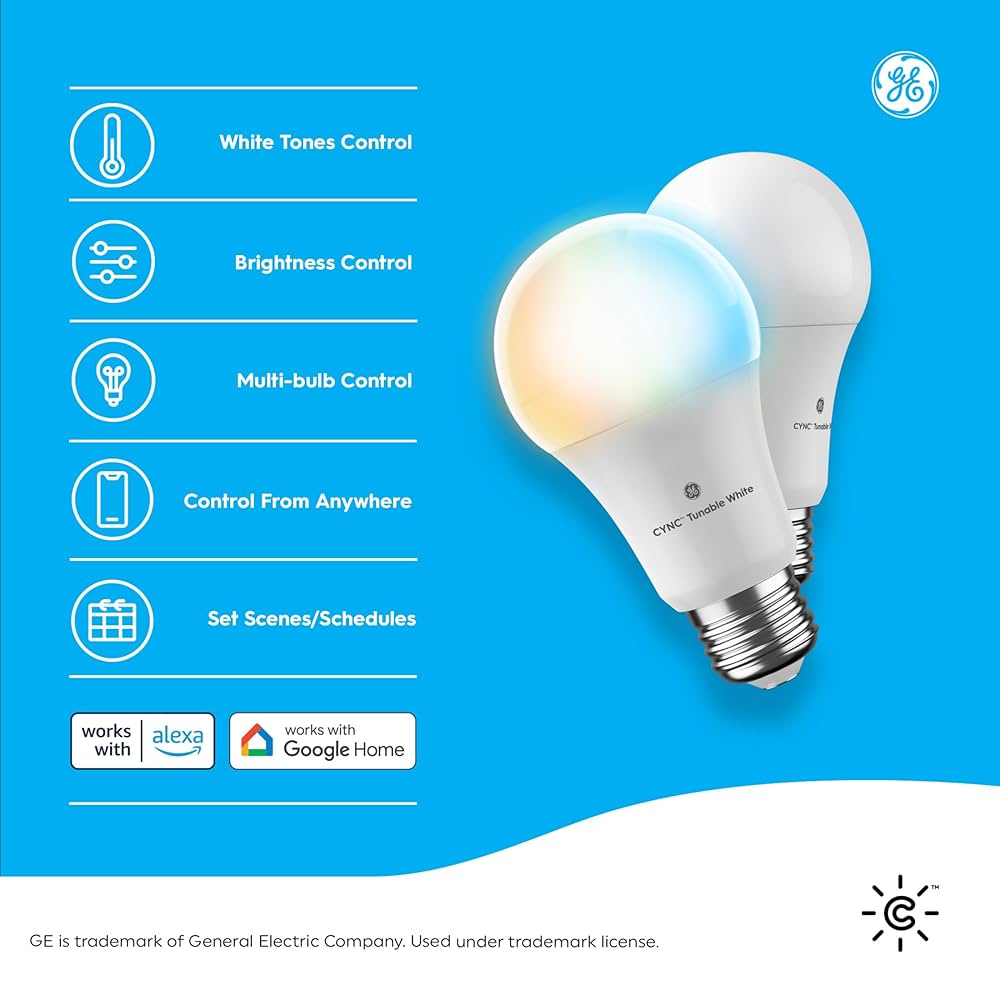
Want to control your Cync light bulb with just your voice? Setting it up with Google Home is easier than you think.
Imagine turning your lights on or off without lifting a finger—just say the word. In this guide, you’ll learn simple, step-by-step instructions to connect your Cync bulb to Google Home quickly and start enjoying hands-free lighting. Keep reading, and by the end, you’ll have smart lighting that works perfectly with your Google Assistant.
Prepare Your Cync Bulb
Getting your Cync light bulb ready is the first step to enjoy smart lighting. Proper preparation ensures smooth setup and better control with Google Home. Follow these simple tasks before connecting your bulb.
Check Compatibility
Confirm your bulb works with your home devices. Cync bulbs need a compatible socket size. Also, check your Google Home supports smart lighting. Verify Wi-Fi requirements—most Cync bulbs use 2.4 GHz networks. Compatibility avoids connection issues later.
Install The Bulb
Turn off the power before installation. Screw the Cync bulb into the light socket firmly. Avoid overtightening to prevent damage. Make sure the bulb fits well and is secure. This step is crucial for safety and performance.
Power On
Switch on the light to power your bulb. The bulb’s indicator light should blink. Blinking shows it is ready for setup. If no blinking occurs, reset the bulb according to the instructions. Powering on correctly allows Google Home to detect it.

Credit: www.amazon.ca
Download Necessary Apps
Setting up your Cync light bulb with Google Home starts with downloading the right apps. These apps help connect the bulb to your smart home system. Without them, the devices cannot communicate. Prepare your phone or tablet to download and install these essential apps. This step ensures smooth setup and control of your smart lighting.
Get The Cync App
The Cync app controls your smart light bulb directly. Download it from the App Store or Google Play. Search for “Cync” and select the app by Cync Smart Home. Install the app and open it. Create an account or log in if you already have one. Follow the app’s instructions to add your Cync light bulb.
Install Google Home App
The Google Home app links your Cync light bulb to Google Assistant. Find it in the App Store or Google Play. Download and install the app on your device. Sign in with your Google account to access smart home features. Use this app to manage your Cync bulb with voice commands.
Create Cync Account
Creating a Cync account is your first move to control your Cync light bulbs with Google Home. Without an account, syncing your devices and managing them remotely won’t be possible. The process is straightforward and takes just a few minutes, setting the stage for a smart home experience that’s truly customized to you.
Sign Up Process
Start by downloading the Cync app from the App Store or Google Play. Once installed, open the app and look for the “Sign Up” button on the welcome screen. You’ll need to provide a valid email address and create a strong password.
After entering your details, confirm your email through the verification link sent to your inbox. This step ensures your account’s security and allows you to recover your password if needed. Have you ever skipped email verification only to regret it later? Don’t let that happen here.
- Choose an email you check regularly.
- Create a password with a mix of letters, numbers, and symbols.
- Verify your email promptly to avoid delays.
Set Up Device In Cync App
With your account ready, it’s time to add your Cync light bulb. Make sure your bulb is powered on and nearby. In the app, tap the “Add Device” button and select “Light Bulb” from the list of available devices.
The app will guide you to connect the bulb to your Wi-Fi network. Enter your network credentials carefully—remember, your smart bulb won’t work without a stable internet connection. Watching the app confirm your light bulb is connected feels satisfying; it’s the moment your smart home starts to come alive.
- Keep your phone close to the bulb during setup.
- Use a 2.4 GHz Wi-Fi network if possible, as some bulbs don’t support 5 GHz.
- Follow on-screen prompts to complete the setup smoothly.
Connect Cync To Google Home
Connecting your Cync light bulb to Google Home allows you to control your lighting with simple voice commands, making your smart home experience smoother and more enjoyable. The process involves linking your Cync account to Google Home and granting the necessary permissions. This lets Google Assistant access and manage your Cync devices seamlessly.
Link Cync Account
First, open the Google Home app on your smartphone. Tap the ‘+’ icon to add a new device, then select ‘Set up device’ followed by ‘Works with Google.’ Scroll through the list or use the search bar to find ‘Cync.’
Once you select Cync, you will be prompted to log in to your Cync account. Enter your credentials carefully to ensure the connection is successful. This step connects your Cync smart devices to the Google Home ecosystem.
Authorize Permissions
After logging in, you will need to authorize Google Home to access your Cync devices. This permission allows Google Assistant to control your light bulbs and other smart gadgets linked to Cync.
Granting these permissions is crucial. Without them, Google Home won’t be able to turn your lights on or off, adjust brightness, or change colors with voice commands.
Have you ever thought about how much easier your daily routine could be with simple voice controls? Connecting Cync to Google Home brings that convenience right into your hands.
Control Bulb With Voice
Controlling your Cync light bulb with voice through Google Home turns simple commands into immediate actions. It’s not just convenient; it’s a way to personalize your home environment effortlessly. Imagine adjusting your lighting without lifting a finger—just by speaking.
Test Basic Commands
Start by trying straightforward commands like “Hey Google, turn on the living room light” or “Hey Google, dim the bedroom light to 50%.” These basic instructions confirm that your device is properly linked and responsive.
If the bulb doesn’t respond, check your Google Home app to ensure it recognizes the Cync bulb. Sometimes, a quick re-sync or renaming the device for clarity helps avoid confusion during voice commands.
Have you noticed how certain phrases work better than others? Experiment with different commands like “switch off” versus “turn off” to find what your Google Home understands best.
Customize Settings
Beyond simple on and off commands, you can personalize how your bulb reacts to voice control. Adjust the brightness, change colors, or set routines that fit your daily schedule.
- Use the Google Home app to set specific brightness levels with phrases like “Set the kitchen light to 75%.”
- Create routines such as “Good night” that turn off all Cync bulbs and activate other smart devices simultaneously.
- Rename bulbs to easy-to-remember names, especially if you have multiple Cync bulbs in different rooms.
Think about what lighting mood matches your activities. Do you want a bright setting for reading or a soft glow for relaxing? Voice commands can make these transitions seamless and immediate.

Credit: visapoint.travel
Troubleshooting Tips
Setting up your Cync light bulb with Google Home usually goes smoothly. Sometimes, issues can arise during or after setup. These troubleshooting tips help solve common problems fast. Follow these guidelines to ensure your smart bulb works as expected and stays connected.
Common Issues
- Bulb not responding to voice commands
- Google Home unable to find the bulb
- Bulb flickering or turning off randomly
- Difficulty connecting bulb to Wi-Fi network
- App showing the bulb as offline
Check your Wi-Fi signal strength near the bulb. Weak signals cause connection problems. Make sure your Google Home device and bulb are on the same Wi-Fi network. Restart your router if needed. Also, confirm the bulb is powered on and within range of the router.
Resetting The Bulb
Resetting the Cync light bulb clears previous settings and helps fix many issues. To reset, turn the bulb on and off five times quickly. The bulb will flash to confirm reset. After this, reconnect the bulb to your Wi-Fi and Google Home app.
Use the Google Home app to add the bulb again. Follow the on-screen instructions carefully. This process often resolves connection and control problems. Keep the bulb close to your router during setup for best results.

Credit: www.amazon.com
Frequently Asked Questions
How Do I Connect Cync Bulb To Google Home?
To connect your Cync bulb, open the Google Home app. Tap on the “+” icon and select “Set up device. ” Choose “Works with Google” and search for Cync. Follow the on-screen instructions to complete the setup. Ensure both devices are on the same Wi-Fi network for seamless connectivity.
Why Is My Cync Bulb Not Responding To Google Home?
Check if both devices are connected to the same Wi-Fi network. Ensure the Cync app is updated. Restart your Google Home device and the Cync bulb. Reconnect them using the Google Home app. If issues persist, reset the bulb and try the setup process again.
Can I Control Cync Bulb With Google Assistant?
Yes, you can control your Cync bulb using Google Assistant. Simply link your Cync account to Google Home. Use voice commands to turn on, off, or dim your lights. This allows hands-free management of your smart lighting with ease, enhancing your home automation experience.
How To Reset Cync Bulb For Google Home?
To reset your Cync bulb, turn it on for 8 seconds. Then, turn it off for 2 seconds. Repeat this on-off cycle five times. The bulb will flash to indicate a successful reset. Reconnect it using the Google Home app for seamless integration with your smart home setup.
Conclusion
Setting up your Cync light bulb with Google Home is simple and quick. Just follow the steps carefully, and you will control your lights by voice in no time. Enjoy hands-free lighting that fits your daily needs. This setup adds comfort and ease to your home.
Try adjusting brightness or colors with simple commands. Smart lighting has never been this easy to use. Keep exploring new ways to make your home smarter and more convenient.